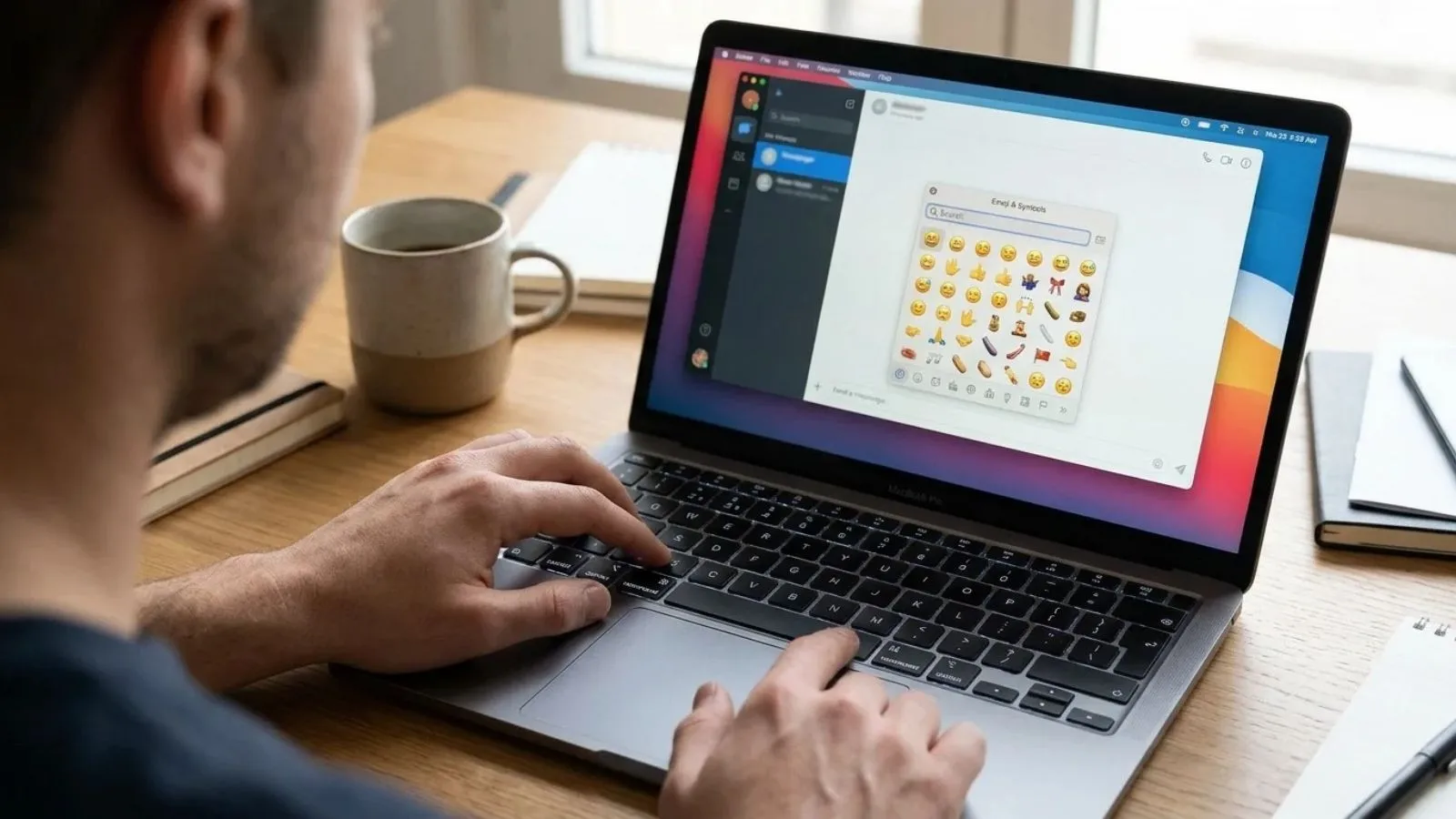
Want to add emojis to a message or document on your Mac? You can do it with a simple keyboard shortcut.
The Mac emoji shortcut opens a small window where you can search for and pick almost any emoji. You do not need to copy emojis from a website or use a separate app.
This guide shows you how to open the emoji picker, find your favorite symbols, and use them in texts, emails, notes, and social media posts.
100 Emojis Related to Emoji Shortcut Mac
These popular emojis are useful for messages, social posts, emails, and everyday typing on your Mac.
| Emoji | Meaning | Emoji | Meaning |
| 😊 | Happy | ❤️ | Love |
| 😂 | Laughter | 😍 | Admiration |
| 😢 | Sadness | 😎 | Cool |
| 🤔 | Thinking | 😭 | Crying |
| 🥰 | Affection | 😘 | Kiss |
| 😉 | Wink | 😁 | Big smile |
| 🤗 | Hug | 🥳 | Celebration |
| 😴 | Sleepy | 🤩 | Excited |
| 🙃 | Playful | 😇 | Innocence |
| 😅 | Nervous laugh | 🤣 | Funny |
| 😋 | Tasty | 😜 | Silly |
| 🤭 | Giggling | 🫢 | Surprise |
| 😱 | Shock | 🥺 | Please |
| 😌 | Calm | 😏 | Smirk |
| 😡 | Angry | 🤯 | Mind blown |
| 😍 | Love | 😔 | Sad |
| 👋 | Hello | 👍 | Approval |
| 👎 | Dislike | 👏 | Applause |
| 🙌 | Celebration | 🙏 | Thanks |
| 💪 | Strength | 🤝 | Agreement |
| 🫶 | Heart hands | 👌 | Okay |
| ✌️ | Peace | 🤞 | Good luck |
| 🖐️ | Stop | 🫡 | Respect |
| ❤️ | Red heart | 💙 | Blue heart |
| 💚 | Green heart | 💛 | Yellow heart |
| 🖤 | Black heart | 🤍 | White heart |
| 💜 | Purple heart | 🩷 | Pink heart |
| 💔 | Broken heart | 💕 | Two hearts |
| 💖 | Sparkling heart | 💗 | Growing love |
| 💘 | Cupid love | 💝 | Heart gift |
| 🔥 | Fire | ⭐ | Star |
| ✨ | Sparkles | 🌈 | Rainbow |
| ☀️ | Sunshine | 🌙 | Moon |
| 🌸 | Flower | 🌻 | Sunflower |
| 🌹 | Rose | 🍀 | Good luck |
| 🎉 | Party | 🎂 | Birthday |
| 🎁 | Gift | 🎈 | Balloon |
| 🏆 | Trophy | 🥇 | First place |
| 🎵 | Music | 🎧 | Headphones |
| 📱 | Phone | 💻 | Computer |
| ⌨️ | Keyboard | 🖥️ | Desktop |
| 📧 | 📷 | Camera | |
| 📸 | Photo | 🎮 | Gaming |
| 🚀 | Launch | 🌍 | Earth |
| 🐱 | Cat | 🐶 | Dog |
| 🦋 | Butterfly | 🐼 | Panda |
| 🐸 | Frog | 🦄 | Unicorn |
| 🍕 | Pizza | 🍔 | Burger |
| ☕ | Coffee | 🍰 | Cake |
Note: Some emojis above are included as examples of symbols you can find and type with the Mac emoji picker. The shortcut itself is a keyboard feature, not an emoji.
What Does Emoji Shortcut Mac Mean?
The emoji shortcut on Mac is a quick keyboard command that opens the emoji and symbols picker.
Press these keys together:
Control + Command + Space (⌃ + ⌘ + Space)
A small window will appear on your screen. It lets you search for emojis, symbols, and other special characters.
For example, if you want to add a smiling face, type “smile” in the search box. You can then select 😊 to insert it.
This shortcut works in many apps, including:
- Messages
- Notes
- Safari text fields
- Pages
- Many social media websites
You can use it whenever you want to add an emoji without leaving your current app.
Emoji Shortcut Mac Meaning in Text
When someone talks about the Mac emoji shortcut, they usually mean the keyboard command that makes typing emojis faster.
It is useful when chatting with friends, writing emails, or posting online.
Here are a few examples:
- “Press Control + Command + Space to open emojis 😊”
- “I found the perfect emoji for this message 😂”
- “You can add a heart from the Mac emoji menu ❤️”
The shortcut does not send a message by itself. It only opens the emoji picker so you can choose a symbol.
What Does Emoji Shortcut Mac Mean From a Girl?
If a girl tells you to use the Mac emoji shortcut, she is most likely showing you an easy way to add emojis while typing.
She may use it when chatting, helping with computer work, or sharing a useful Mac tip.
For Example:
- “Try this shortcut, it’s so easy 😊”
- “You can add cute emojis with these keys ❤️”
The meaning is usually practical and friendly. It does not have a special romantic meaning on its own.
What Does Emoji Shortcut Mac Mean From a Guy?
A guy may mention the shortcut when sharing a Mac tip or helping someone type faster.
He may also use it during a casual chat about computers, writing, or social media.
For Example:
- “Just press Control + Command + Space 😂”
- “Now you can add emojis to your messages 👍”
The message is usually about saving time and making typing easier.
Emoji Shortcut Mac Meaning on Social Media
The Mac emoji picker is helpful when creating posts, captions, comments, and messages on different platforms.
Here is how you can use it:
Instagram: Add emojis to captions, comments, bios, and direct messages.
TikTok: Use emojis in video descriptions, comments, and replies.
Snapchat: Add emojis to chats and messages.
WhatsApp: Type emojis into personal and group chats.
Facebook: Add symbols to posts, comments, and Messenger chats.
Discord: Use emojis in server chats, private messages, and channel discussions.
You do not need a different shortcut for each platform. If the text field accepts normal text input, the Mac emoji picker may work there.
Context and How People Use It
The emoji shortcut has one main purpose: helping Mac users insert emojis quickly.
However, the emojis you choose can change the tone of your message.
For Example:
- “Thanks for helping me 😊” sounds warm and friendly.
- “That was so funny 😂” shows laughter.
- “I miss you ❤️” adds a loving tone.
You can also use the shortcut to find symbols for schoolwork, work documents, and creative projects.
Remember that the shortcut opens the picker. The meaning comes from the emoji you select and the message you write.
Is Emoji Shortcut Mac Positive or Negative?
The Mac emoji shortcut is neutral. It is simply a keyboard command.
It does not express happiness, sadness, love, or anger by itself.
The emoji you insert decides the tone of your message.
For Example:
- 😊 usually feels positive.
- ❤️ often shows love or care.
- 😡 can express anger.
- 😂 usually shows laughter.
- 🤔 can show curiosity or confusion.
You can use the shortcut for friendly, funny, romantic, or professional messages.
How to Reply to Emoji Shortcut Mac
If someone shares the Mac emoji shortcut with you, you can reply in a simple way.
Here are some natural ideas:
Friendly replies:
- “Thanks for the tip!”
- “That’s really helpful 😊”
Funny replies:
- “Now my messages will be full of emojis 😂”
- “I needed this shortcut!”
Romantic replies:
- “I’ll send you some cute emojis ❤️”
- “That’s sweet of you 🥰”
Casual replies:
- “Got it!”
- “I’ll try it now.”
Supportive replies:
- “Thanks for making it easier!”
- “That will save me time 👍”
How to Use Emoji Shortcut in a Text
Using the Mac emoji shortcut is simple. Follow these steps:
- Open an app where you can type text.
- Click inside the text box.
- Press Control + Command + Space together.
- Wait for the emoji picker to appear.
- Type an emoji name in the search box.
- Click the emoji you want.
- It will appear wherever your cursor is placed.
You can also browse the available emoji categories instead of searching.
Here are some examples of emojis you can insert:
- “Good morning! ☀️”
- “See you soon 😊”
- “Happy birthday! 🎂”
- “That looks amazing 🔥”
- “Thank you so much ❤️”
What if the shortcut does not work?
Try these simple fixes:
- Make sure you press all three keys together.
- Click inside a text field before using the shortcut.
- Check whether the app supports emoji input.
- Try the shortcut in another app, such as Notes.
- Restart the app if the picker does not appear.
On some Mac keyboards, the Fn or Globe key may also open the emoji picker, depending on your keyboard settings.
FAQs
1. What is the emoji shortcut on Mac?
The Mac emoji shortcut is Control + Command + Space. It opens the emoji and symbols picker so you can add emojis while typing.
2. How do I get emojis on my Mac keyboard?
Press Control + Command + Space while typing. A small emoji window will appear, allowing you to search and select emojis.
3. Can I search for emojis on Mac?
Yes. Open the emoji picker and type a word such as “heart,” “smile,” or “fire” into the search box.
4. Why is my Mac emoji shortcut not working?
Check that your cursor is inside a text field and that you are pressing the correct keys. You can also test the shortcut in Notes or another app.
5. Can I use the emoji shortcut in Word and Google Docs?
Yes. It generally works in apps and text fields that support macOS emoji input, including many document editors and websites.
6. Is there another way to open the emoji picker on Mac?
Yes. Depending on your Mac and keyboard settings, you may be able to use the Fn or Globe key to open the emoji picker.
Conclusion:
The emoji shortcut on Mac makes typing emojis quick and easy. Just press Control + Command + Space to open the emoji picker, search for your favorite symbol, and add it to your text.
You can use it in messages, emails, documents, and social media posts. Once you learn this simple keyboard command, adding emojis to everyday typing becomes much easier.

I’m Maya Angelou, the creator behind EmojiAura.com, where I explore emoji meanings, social media trends, and fun digital expressions. I’m passionate about helping people understand the real meaning behind emojis and use them creatively in chats, captions, posts, and everyday online conversations.