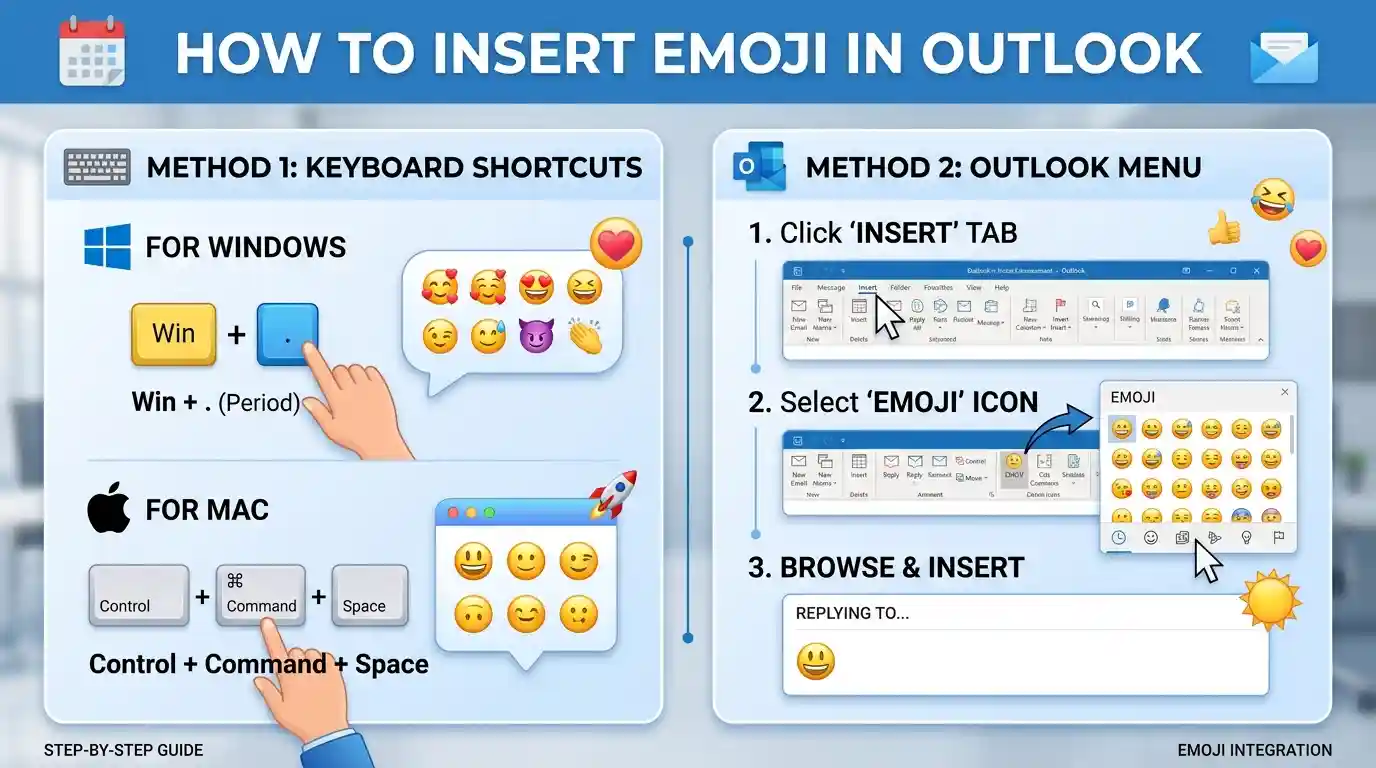
To insert an emoji in Outlook, open a new email or reply and place your cursor where you want the emoji. On Windows, press Windows + . (period) to open the emoji picker, then select an emoji. On Outlook on the web, use the emoji button in the message composer. On a Mac, open the macOS emoji viewer with Control + Command + Space.
Key Takeaways
- Press Windows + . to insert emojis quickly in Outlook on Windows.
- Use the emoji button in the message composer in Outlook on the web.
- On a Mac, press Control + Command + Space to open the character viewer.
- You can also copy and paste emojis directly into an email.
- Emojis may look different on different devices, so use them carefully in professional messages.
How to Insert Emoji in Outlook on Windows
The easiest way to add an emoji to an Outlook email on Windows is to use the built-in Windows emoji picker. You do not need to install an extra application or search through Outlook’s menus.
Use the Windows Emoji Keyboard Shortcut
Follow these steps to insert an emoji:
- Open Outlook on your Windows computer.
- Select New Mail, or open an existing email and choose Reply.
- Click inside the message body where you want the emoji.
- Press Windows + . (period) on your keyboard.
- Browse the emoji categories or type a word such as “smile,” “heart,” or “celebration” into the search field.
- Select your preferred emoji to insert it into the email.
- Close the picker and continue writing your message.
For example, you could write:
“Thanks for your help with the project! 😊”
The emoji appears at the cursor position, so you can place it at the beginning, middle, or end of a sentence. Microsoft documents this shortcut for supported versions of Outlook on Windows. See Microsoft’s emoji instructions.
Tip: If the period shortcut does not open the picker, try Windows + ; (semicolon). This alternative works on supported Windows setups, too.
Insert Emojis in Classic Outlook
Classic Outlook does not always show a dedicated emoji button in the ribbon. You can still use the Windows emoji picker.
- Open a new message or reply.
- Click in the email body.
- Press Windows + .
- Select an emoji from the picker.
If you want another option, Microsoft’s support documentation also describes adding an emoji add-in through Home > Get Add-ins. Availability may depend on your Outlook version and organization settings.
You do not need an add-in for the standard Windows emoji picker.
How to Add Emojis in Outlook on the Web
If you use Outlook in a browser through Outlook.com or your work or school account, you can usually insert an emoji directly from the message composer.
Follow these steps:
- Open Outlook in your browser and sign in.
- Select New mail, or open a message and choose Reply.
- Look for the Insert emojis and GIFs icon near the bottom of the message composer.
- Select the icon to open the emoji panel.
- Browse the popular emojis or choose the emoji you want.
- Continue writing and send your email when ready.
Microsoft documents this method for Outlook on the web. The icon’s position may differ slightly depending on the interface you use. Read Microsoft’s web instructions.
If you cannot find the emoji icon, check the message toolbar and any additional options. You can also try the Windows shortcut Windows + . if you are using Outlook in a Windows browser.
Example:
“Your meeting is confirmed for tomorrow. 👍”
The emoji appears in the message itself, not as an attachment.
How to Insert Emoji in Outlook for Mac
Mac users can use the built-in macOS character viewer to insert emojis into Outlook.
- Open Outlook on your Mac.
- Create a new email or reply to an existing message.
- Click where you want the emoji to appear.
- Press Control + Command + Space.
- Search for an emoji or browse the available categories.
- Select an emoji to insert it into your message.
You can use this method to add smiley faces, hearts, hand gestures, food emojis, and many other symbols.
For example:
“Congratulations on your new role! 🎉”
If the shortcut does not work, open the emoji and character viewer through the available macOS menu options or check your keyboard settings. The exact menu path can vary by macOS version.
How to Add Emojis in the Outlook Mobile App
You can insert emojis into Outlook emails on an iPhone or Android phone using the device’s built-in emoji keyboard.
On iPhone
- Open the Outlook app.
- Start a new email or reply to a message.
- Tap inside the message body.
- Tap the emoji key on your iPhone keyboard.
- Choose an emoji and continue typing.
On Android
- Open Outlook and create a new email.
- Tap the message body.
- Open the emoji keyboard using the emoji icon on your keyboard.
- Select an emoji to insert it into the message.
The exact keyboard layout depends on your phone and keyboard app. If you cannot see an emoji key, check the keyboard’s symbol or punctuation options.
Copy and Paste Emojis into Outlook
Another easy way to add an emoji is to copy it from a webpage, document, or another message and paste it into Outlook.
For example, you can copy any of these emojis:
😊 ❤️ 👍 🎉 📅 ✅ 🌟
Then follow these steps:
- Select the emoji you want to use.
- Copy it using Ctrl + C on Windows or Command + C on Mac.
- Open your Outlook email.
- Click where you want the emoji.
- Paste it using Ctrl + V on Windows or Command + V on Mac.
This method is helpful if you frequently use the same emojis or already have a list of favorites.
However, copying and pasting does not guarantee that every recipient will see the exact same design. Display depends on the recipient’s device, operating system, and email application.
Why Are Emojis Not Working in Outlook?
If you cannot insert an emoji or the emoji looks different after sending an email, try these solutions.
| Problem | What to try |
|---|---|
| Windows emoji picker will not open | Click inside the message body and press Windows + . again. |
| Emoji button is missing | Check the message toolbar and additional options. |
| Emoji search does not work | Browse the categories or try another insertion method. |
| Emoji appears as a box or question mark | Try a standard, widely supported emoji and check the receiving application’s compatibility. |
| Emoji looks different after sending | Check the message on another device or email application. |
| Emoji will not insert on Mac | Use Control + Command + Space or open the character viewer manually. |
Why Do Emojis Look Different for Recipients?
Emojis are encoded characters, but different operating systems and applications may display them with different artwork. For example, a smiley face may have a slightly different expression or color on Windows, macOS, Android, and iOS.
Some older applications may not support newer emoji characters. In those cases, a recipient might see a blank box or another placeholder instead.
To reduce compatibility problems, choose common emojis and avoid relying on them to communicate essential information.
Tips for Using Emojis in Professional Emails
Emojis can make an email feel friendly, but the right choice depends on your audience and the purpose of your message.
- Use them sparingly. One relevant emoji is often enough.
- Match your audience. A friendly smile may suit a teammate, while a formal business email may not need emojis.
- Keep important details in words. Do not replace dates, instructions, or key information with emojis alone.
- Consider the context. A celebration emoji may fit a congratulatory message, while a serious complaint usually calls for plain language.
- Check the final message. Make sure the emoji appears in the right place before you send the email.
For example, “Thanks for sending the report! 😊” may work well in a friendly team conversation. For a formal client proposal, “Thank you for reviewing our proposal” may be more appropriate.
Frequently Asked Questions
1. What is the keyboard shortcut for emojis in Outlook?
On Windows, press Windows + . (period) to open the emoji picker. You can also try Windows + ; on supported setups. On a Mac, press Control + Command + Space to open the character viewer.
2. Can I insert emojis in Outlook without using the keyboard?
Yes. Outlook on the web provides an emoji button in the message composer. On a phone, use the emoji keyboard on your device. You can also copy an emoji from another source and paste it into your message.
3. Why can’t I find the emoji button in Outlook?
The button’s location depends on your Outlook version and interface. In some desktop versions, the Windows emoji picker is the simplest option. In Outlook on the web, check the message composer and its additional toolbar options.
4. Can I put emojis in an Outlook email subject line?
You can often copy and paste a supported emoji into the subject field, although behavior can vary by version and account. Use subject-line emojis carefully because they may appear differently across email applications and can make formal messages look less professional.
5. Will the recipient see the same emoji I inserted?
Not always. Different devices and email applications may display the same emoji differently. Older software may not support newer emoji characters. If the exact appearance matters, test the message in the recipient’s likely environment or use plain text to communicate essential information.
Conclusion
Learning how to insert emoji in Outlook is simple once you know which method works for your device. On Windows, use Windows + .; on the web, select the emoji button in the message composer; on a Mac, use Control + Command + Space. Mobile users can use their phone’s emoji keyboard.
Choose emojis that fit your message, check their placement before sending, and remember that recipients may see a different design on their devices.